Programing devices over I2C
Now that we know how to read and write individual registers we are ready to move up one level and use Python language for programming devices directly inside I2C Commander. We use Python version 3.13 and inject into default environment several variables, methods, and classes useful for working with I2C devices. Below we will walk through several examples to showcase how to write such programs/commands.
As before we are working with BMP581 chip. We assume that all registers from the datasheet have already being defined.
BMP581 initialization
According to the datasheet after powering up the chip it is recommended to read several registers and confirm specific values. If those values are as per specification, then proceed with temperature and pressure measurements.
- Read
CHIP_IDregister and check that its value is not 0. - Confirm that in
STATUSregister fieldsstatus_nvm_rdyandstatus_nvm_errhave values 1 and 0 respectively. - Confirm that in register
INT_STATUSfieldporis set to 1.
Note that reading INIT_STATUS register resets all of its fields to 0. This means that init sequence as outlined above
can only be run once on freshly powered on BPM581 chip.
Let's create function that performs these checks. First lets switch to the "User defined commands" tab.
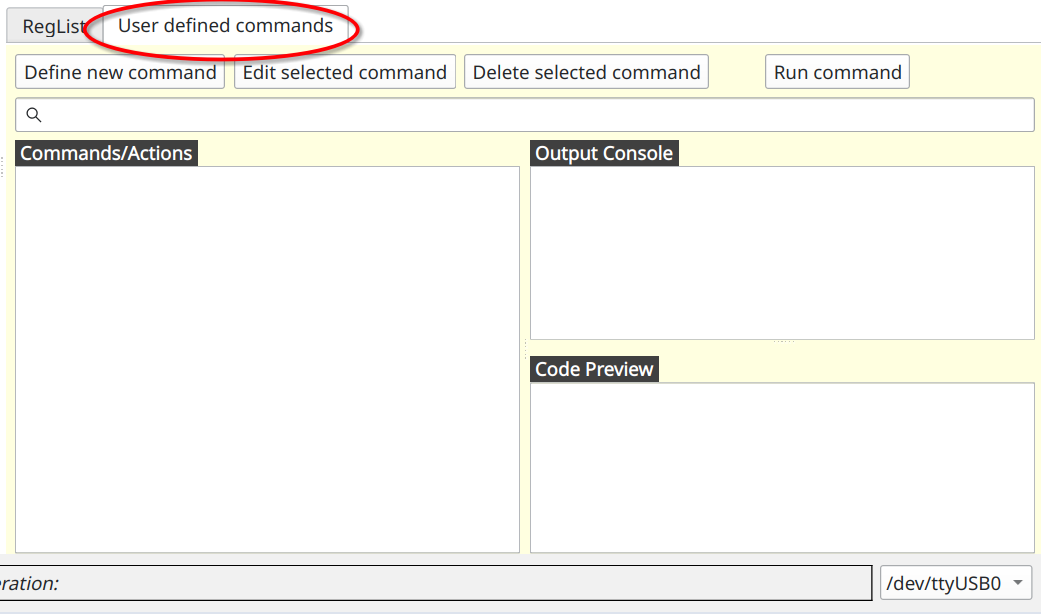
You will see three main parts.
- Commands/Actions - this is a list of custom commands defined by the user.
- Output Console - printouts and error messages that would normally be written into a terminal will appear here.
- Code Preview - here you will see the code as you click/select commands in the Commands/Actions list.
Now click on "Define new command" button. New window will open where you can enter following
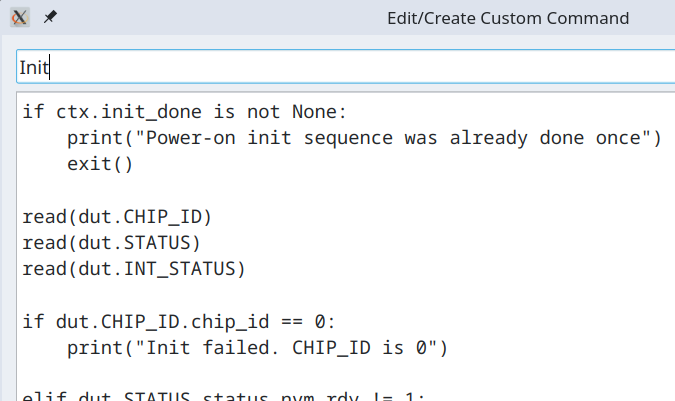
Line above, "Init" is a name of custom command as it will appear in the list of commands. And bellow is the code
if ctx.init_done is not None:
    print("Power-on init sequence was already done once")
    exit()

read(dut.CHIP_ID)
read(dut.STATUS)
read(dut.INT_STATUS)

if dut.CHIP_ID.chip_id == 0:
    print("Init failed. CHIP_ID is 0")

elif dut.STATUS.status_nvm_rdy != 1:
    print(f"Init failed. STATUS.status_nvm_rdy is {dut.STATUS.status_nvm_rdy}")

elif dut.STATUS.status_nvm_err != 0:
    print(f"Init failed. STATUS.status_nvm_err is {dut.STATUS.status_nvm_err}")

elif dut.INT_STATUS.por != 1:
    print(f"Init failed. INT_STATUS.por is {dut.INT_STATUS.por}")

else:
    print("Init success")
    ctx.init_done = True
This code is plain python but implicitly in it several special functions and objects are available to the user. Let's go over this code to see what they are.
First we are going to access variable ctx.init_done and see if it not None. Object ctx is global session
persistent context. You can read and place any variable in it, and it will survive from one invocation of the command to
the next. Context ctx is also shared between commands, which is how you can pass messages from one command to another.
When you access context variable that is not defined yet, it returns None. Variable becomes defined and populated by
some value when you assign some value to it. At the bottom you can see such assignment ctx.init_done = True. Thus, the
check at the top ensures that init sequence will not be run more than once.
Following three lines have form similar to read(dut.CHIP_ID). Object dut is implicitly available to the user, and it
represents access to the device under test (aka DUT) and its registers.
Function read(...) takes register as an argument and reads that register from the connected chip. After registers are
read we can access their fields. For example, we can check that dut.CHIP_ID.chip_id == 0 and so on.
Now lets click "Ok" button. This command should now appear in the list.
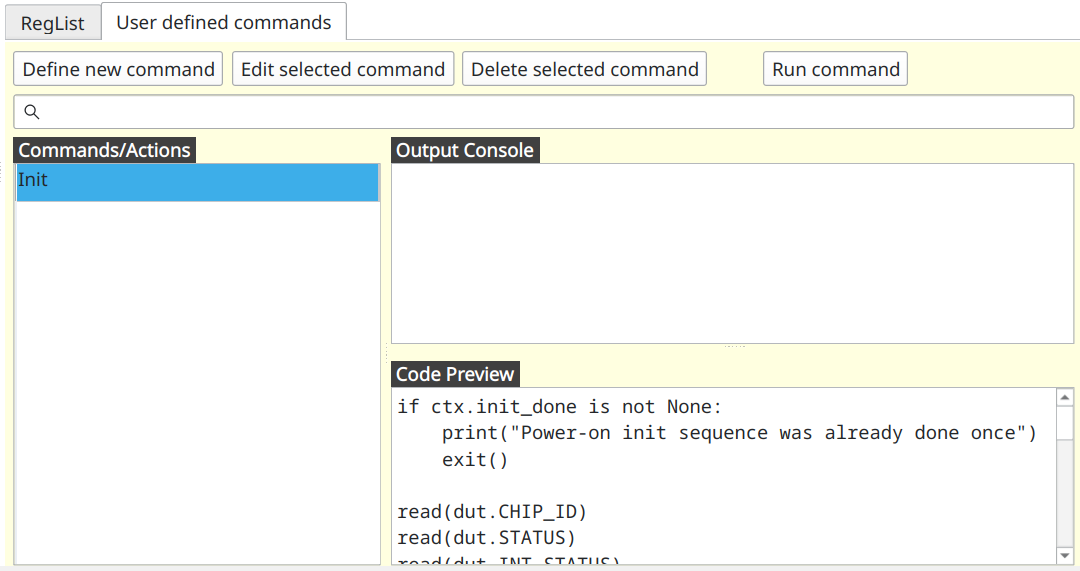
Now if you double-click (or click on "Run command" button or simply press Enter on the keyboard) on this action, its
code will execute and print Init success in Output Console. Subsequent calls to this command prints out
Power-on init sequence was already done once.
Mapping ODR to human-readable values
Fixed point number numerical format is often not enough to express content of the registers in human-readable form. For
example, ODR_CONFIG register has field called odr. It holds a value which maps to the actual output data rate in
Hertz using lookup table. For example, value 0x0 maps to 240 Hz, 0x1 to 218.537 Hz and so on. Thus, we need to
create a list where value and index is a string that holds representation of output data rate in Hertz. We will place
this list into context ctx and initialize it in special command __start__.
Command named __start__ is executed automatically when project is loaded including when I2C Commander starts and
loads last opened project. Thus, this makes it an ideal place to initialize constants that can be used by other
commands. To that end, we create command named __start__ with the following content.
ctx.ODR_HZ = [
    "240", "218.537", "199.111", "179.2", "160",
    "149.333", "140", "129.855", "120", "110.164",
    "100.299", "89.6", "80", "70", "60", "50.056",
    "45.025", "40", "35", "30", "25.005", "20", "15",
    "10", "5", "4", "3", "2", "1", "0.5", "0.25", "0.125"
]
Index within this table corresponds to ODR_CONFIG.odr field value which we can simply use as index into this array.
Now let's create custom command named "Read ODR (output data rate)" with the following content.
read(dut.ODR_CONFIG)

output_data_rate = ctx.ODR_HZ[dut.ODR_CONFIG.odr]
print(f"Output data rate is {output_data_rate} Hz.")
When this command is executed it should print something like this
Output data rate is 1 Hz.
Configuring ODR_CONFIG register
Now that we know how to read and display output data rate values in human-readable format we will define graphical UI
for the odr field in ODR_CONFIG register. To that end we create custom command called
Configure output data rate (ODR)
with the following code
read(dut.ODR_CONFIG)
current_odr_value = ctx.ODR_HZ[dut.ODR_CONFIG.odr]

odr = prompt_user(
    Variable(
        current_odr_value, valid_values=ctx.ODR_HZ, name="Output Data Rate [Hz]"
    )
)
new_odr_field_value = ctx.ODR_HZ.index(odr)

dut.ODR_CONFIG.odr = new_odr_field_value
write(dut.ODR_CONFIG)

read(dut.ODR_CONFIG)
current_odr_value = ctx.ODR_HZ[dut.ODR_CONFIG.odr]
print(f"Output data rate is configured to {current_odr_value} Hz")
When you run this command it should look like so:
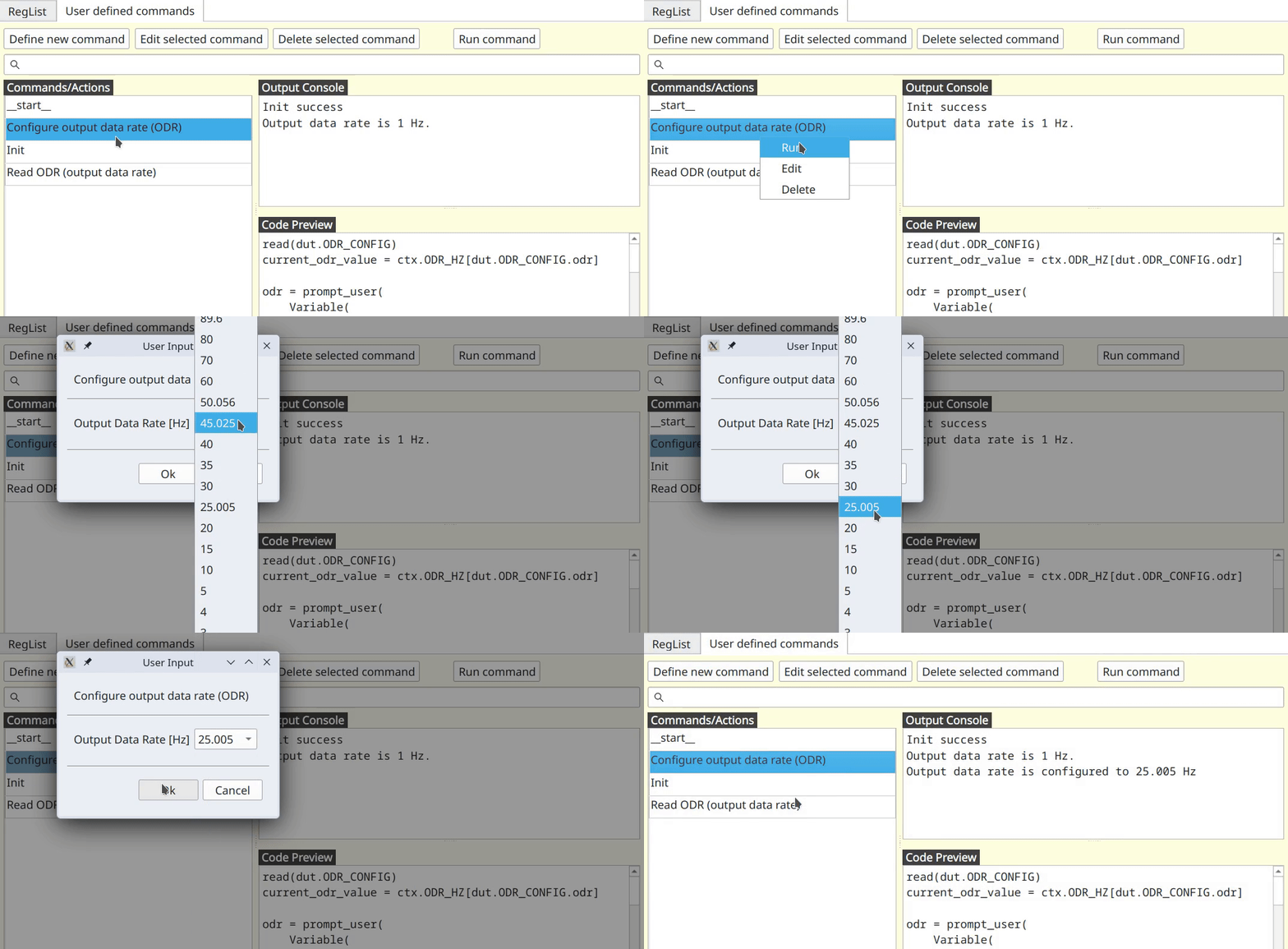
Let us go over this code line by line to understand how it works. First, let's note that there are two new functions in
here, prompt_user(...) and write(...). We will get to them shortly.
First we read ODR_CONFIG register and then obtain string human-readable representation of output data rate by
accessing ctx.ODR_HZ array at position of ODR_CONFIG.odr field value. We then call this:
odr = prompt_user(
    Variable(
        current_odr_value, valid_values=ctx.ODR_HZ, name="Output Data Rate [Hz]"
    )
)
you
Function prompt_user(...) builds a GUI dialog window using drop down boxes, check boxes or string input fields and
presents it to the user. This GUI will always have Ok and Cancel buttons. If user clicks on Cancel or simply
closes this dialog, then at that point our command terminates. If, however, user clicks on Ok button, then this
function returns values selected by the user in that dialog window. This function takes one or more instances of class
Variable, which is a wrapper over simple variables that encapsulates data necessary for constructing user dialog. In
the example above it has valid_values set to an array of values ctx.ODR_HZ. This means that it will be shown as drop
down box with fixed choice selection. Initially it will be shown with value held in variable
current_odr_value. To the left of label "Output Data Rate [Hz]" will appear. Since current_odr_value is a string
returned value written into odr variable will also be a string.
In a next few lines:
new_odr_field_value = ctx.ODR_HZ.index(odr)
dut.ODR_CONFIG.odr = new_odr_field_value
write(dut.ODR_CONFIG)
First we find position of text in odr in ctx.ODR_HZ array and place it in new_odr_field_value variable. This
position is exactly the value that we write into ODR_CONFIG.odr field in the next line, and finally we write register
dut.ODR_CONFIG onto the device.
To confirm what was written we read back dut.ODR_CONFIG register again, obtain human-readable representation for
odr field and print it out.
read(dut.ODR_CONFIG)
current_odr_value = ctx.ODR_HZ[dut.ODR_CONFIG.odr]
print(f"Output data rate is configured to {current_odr_value} Hz")
Configuring pressure measurements
Now let's create a new command that has more than one GUI inputs. This will involve OSR_CONFIG register that holds
boolean field that enables or disables pressure measurements and another field that defines oversampling rate for
pressure measurements. Similarly, to output data rate above we need to create a lookup table/array in __start__
command.
ctx.OSR = [1, 2, 4, 8, 16, 32, 64]
Then let's create a command named
Pressure measurments control
with the following code:
read(dut.OSR_CONFIG)

pressure_enable, p_oversampling_rate = prompt_user(
    Variable(
        bool(dut.OSR_CONFIG.press_en), name="Enable pressure measurements"
    ),
    Variable(
        ctx.OSR[dut.OSR_CONFIG.osr_p],
        valid_values=ctx.OSR,
        name="Pressure oversampling rate"
    )
)

dut.OSR_CONFIG.press_en = bool(pressure_enable)
dut.OSR_CONFIG.osr_p = ctx.OSR.index(p_oversampling_rate)
write(dut.OSR_CONFIG)

# read back register and printout actrually set values
read(dut.OSR_CONFIG)
if bool(dut.OSR_CONFIG.press_en):
    print("Pressure measurements enabled")
else:
    print("Pressure measurements disabled")

print(f"Pressure oversampling rate =", ctx.OSR[dut.OSR_CONFIG.osr_p])
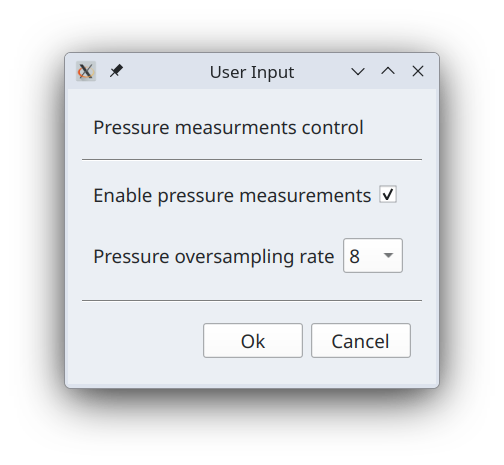
First variable is a boolean and thus will be presented to the user as checkbox. Like so
Reading temperature
In BPM581 chip measured temperature and pressure values occupy 24 bits and thus stored in three bytes each. Thus, to read these values we need to read all three registers, combine them into one and re-interpret their values. Here we will create a command for triggering single shot temperature measurement, reading measured value and presenting it to the user. Let's call it
One-shot temperature read
and code:
import time

read(dut.ODR_CONFIG)
dut.ODR_CONFIG.pwr_mode = 2  # forced one time measurement
write(dut.ODR_CONFIG)

time.sleep(0.005)  # 5 ms. delay for measurement to complete

read(dut.TEMP_DATA_XLSB)
read(dut.TEMP_DATA_LSB)
read(dut.TEMP_DATA_MSB)

temp_C = S(16, [
    dut.TEMP_DATA_MSB.temp_23_16_raw,
    dut.TEMP_DATA_LSB.temp_15_8_raw,
    dut.TEMP_DATA_XLSB.temp_7_0_raw
])

print(f"Temperature {temp_C} C")
According to the datasheet temperature is obtained using this formula:

In other words we need to take three bitarrays from TEMP_DATA_XLSB.temp_7_0, TEMP_DATA_LSB.temp_15_8 and
TEMP_DATA_MSB.temp_23_16 fields, combine them into one bitarray and interpret it as U24.16 fixed point number.
However, according to the definition for these registers fields are always interpreted as some numeric value, not raw
bitarrays. To access field values as raw bitarrays you can append _raw suffix, which is what you see in this code
temp_C = S(16, [
    dut.TEMP_DATA_MSB.temp_23_16_raw,
    dut.TEMP_DATA_LSB.temp_15_8_raw,
    dut.TEMP_DATA_XLSB.temp_7_0_raw
])
Function S(...) combines input bitarrays into one large one and interprets it as a signed number. It takes two
arguments. First argument is value of the fractional part in the fixed point number definition (in case above that is 16
as in U24.16) and second, array of bitarrays or integers. Companion function U(...) is similar, but interprets
combined bitarrays as unsigned number. Both functions U(...) and S(...) return floating point number after
interpretation.
If argument is an integer then it is converted to one byte bit array assuming that int represents unsigned 8 bit field.
This means that if fields have types U8.0, then you can simply use them when calling S(...) or U(...) functions.
This is actually the case temperature fields above and thus code above can be shorted to
temp_C = S(16, [
    dut.TEMP_DATA_MSB.temp_23_16,
    dut.TEMP_DATA_LSB.temp_15_8,
    dut.TEMP_DATA_XLSB.temp_7_0
])
If field is not U8.0, then you must access it with _raw suffix when calling S(...) or U(...) functions.
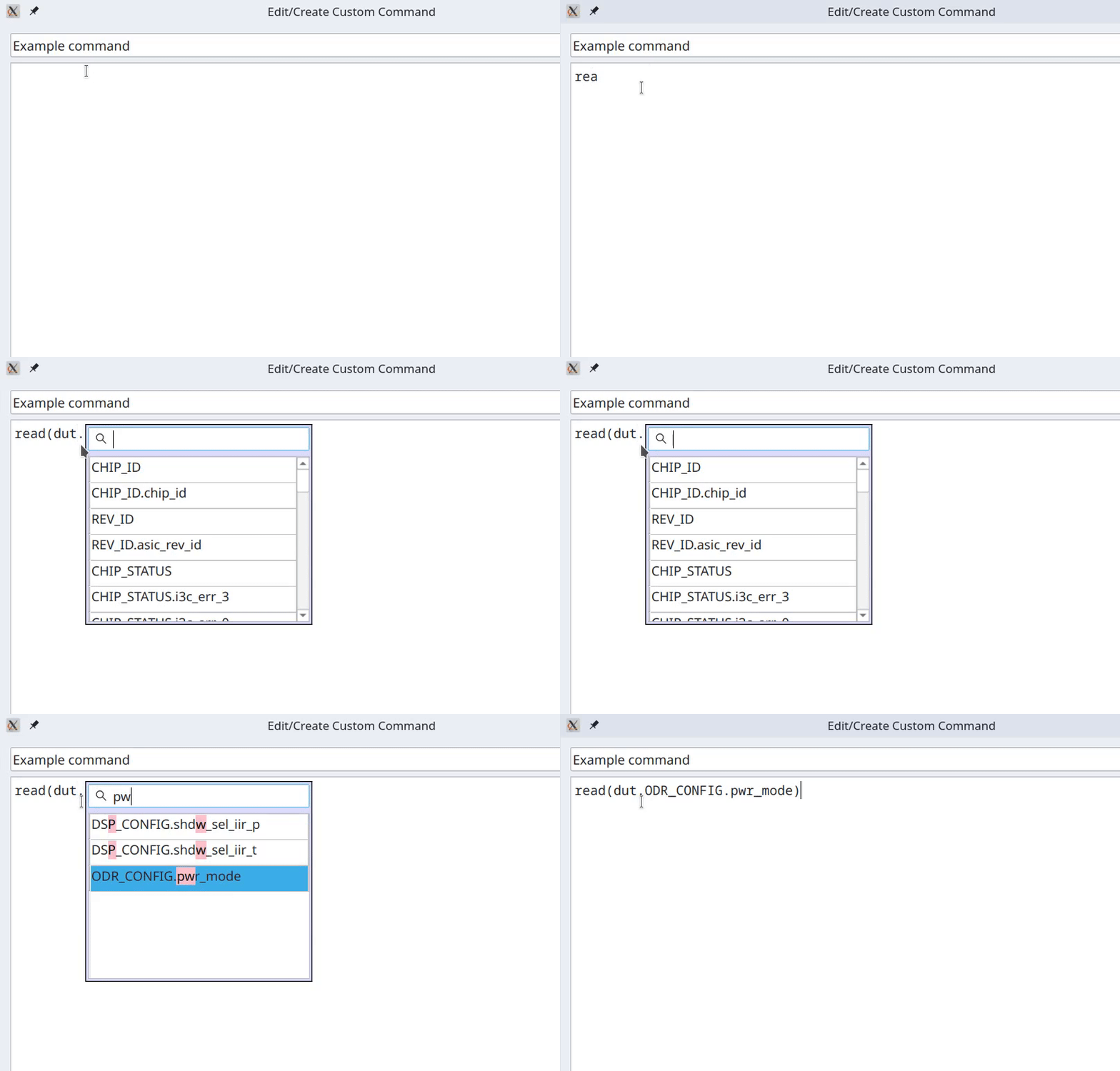
Code auto-completion
Some limited code autocompletion is present in the code edit window. When you type dut. the moment you enter the dot
. popup dialog with table of registers and fields opens where you can select register or register and one of its
fields as they are defined in the RegList. Like in many other tables in the I2C Commander you can start typing to
perform fuzzy search for entry that you need.